Question
How is the ecoQ CoolAir 7/9 controlled?
Answer
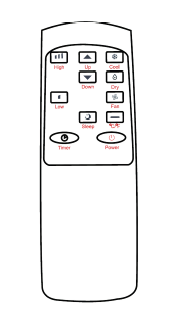
The ecoQ CoolAir 7/9 can be controlled via the control panel or the remote control.
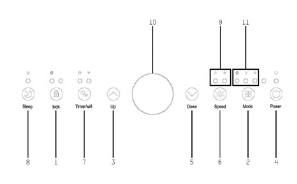 | 1. Key lock: Press the button to activate or deactivate the key lock. 2. Mode: Press this button to switch between the Ventilation, Cooling and Dehumidification operating modes. 3. Up: Increase the desired temperature (16 °C to 32 °C) or timer setting. 4. On/Off: Press this button to switch the unit on or off. 5. Down: Decrease the desired temperature or timer setting. 6. Speed: Press this button to switch the fan speed between HIGH and LOW. 7. Timer: Set the time for the unit to start or stop automatically. Press and hold this button to switch the Wi-Fi function on or off. 8. Night mode: Press this button to activate night mode. 9. Fan speed: Indicates whether the fan speed is set to HIGH or LOW. 10. LED display: Shows the room temperature or the timer setting. 11. Mode display: Shows the selected operating mode: Ventilation, Cooling or Dehumidification. |
 |
Settings
- Press the On/Off button to switch the unit on.
- Press the Mode button to select the desired operating mode.
- Press the On/Off button again to switch the unit off.
Operating modes
- The unit has four operating modes: Cooling, Dehumidifying, Ventilation and Night mode.
Cooling the room
- Select Cooling mode to lower the room temperature.
- Press the Mode button repeatedly until the Cooling indicator lights up.
- Press the Up/Down button to set the desired temperature (16 °C to 32 °C).
- Press the Speed button repeatedly until the desired fan speed lights up.
To adjust the direction of the airflow horizontally, adjust the air vents manually.
Note: The cooling function stops when the room temperature falls below the set temperature.
Ventilating the room
- Press the Mode button repeatedly until the ‘Ventilation’ indicator lights up. In ventilation mode, the air in the room is circulated but not cooled.
- Press the Speed button repeatedly to set the desired fan speed.
In this operating mode, the display shows the room temperature.
Dehumidifying the room
- Press the Mode button on the control panel or the remote control until the dehumidify indicator lights up. The fan speed cannot be adjusted. Connect the hose to the drain outlet at the rear of the unit. In dehumidify mode, the display shows the room temperature.
Note: In this operating mode, the fan speed is set to low and cannot be changed.
Night mode
Night mode can only be activated in cooling mode.
- In cooling mode: After one hour, the set temperature increases by 1 °C; after a further hour, it increases by another 1 °C.
The temperature then remains constant for ten hours. All displays are dimmed. The fan speed is set to low and cannot be adjusted.
Timer setting (1 hour – 24 hours)
The timer can be used in two ways:
1. To switch off (when the unit is switched on):
- Press the Timer button to activate the timer function.
- Press the Up/Down button repeatedly to set the switch-off delay.
2. To switch on (when the unit is off):
- Press the Timer button to activate the timer function.
- Press the Up/Down button repeatedly to set the switch-on delay.
Cancelling the timer:
- Press the Up/Down button repeatedly until the LED displays ‘00’. Note: Pressing the On/Off button will also cancel the timer setting.
Automatic defrosting
At low room temperatures, frost may form on the evaporator during operation. The unit will automatically start defrosting and the POWER LED will flash. The defrost control sequence is as follows:
- When the unit is operating in cooling or dehumidification mode and the ambient temperature sensor detects that the temperature of the evaporator coil has fallen below -1 °C, the compressor switches off for up to ten minutes or until the coil temperature returns to 7 °C.
Overload protection
In the event of a power cut, a three-minute delay prevents the compressor from restarting immediately.
Do you have any questions that haven’t been answered yet? No problem! We’re glad to help: contact ecofort.
Was this article helpful?
That’s Great!
Thank you for your feedback
Sorry! We couldn't be helpful
Thank you for your feedback
Feedback sent
We appreciate your effort and will try to fix the article